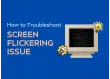
Screen flickering on a Windows PC is one of the most frustrating problems users can face, whether you're using a desktop monitor or a laptop. It can appear as rapid blinking, flashing lines, or sudden brightness changes on the screen. This issue may occur for various reasons, from outdated drivers and incompatible apps to hardware problems like a loose display cable, a faulty monitor, or failing laptop screen components. Laptop screen flickering can interfere with productivity, cause eye strain, and even make your PC nearly unusable in severe cases. Understanding the possible causes helps you determine whether it’s something you can fix at home or if professional help is needed.
Sometimes, screen flickering is caused by incompatible or poorly optimized applications. Certain programs, especially recently installed software, can conflict with Windows display settings or graphics drivers. To check, start your PC in Safe Mode, which loads Windows with only essential drivers. If the flickering stops in Safe Mode, it’s likely an app causing the issue. You can then uninstall recently added programs or update them to their latest versions. Star Tech Service Center can also assist by identifying conflicting applications and resolving software-related flickering safely.
Outdated or corrupted graphics drivers are one of the most common causes of monitor screen flickering. Windows usually installs drivers automatically, but sometimes they can become outdated or fail during updates. To fix this, open the monitor or laptop device manager, locate your display adapter, and update the driver. If updating doesn’t work, uninstall the driver and reinstall the latest version from the manufacturer’s website. For users who are not comfortable handling drivers manually, Star Tech Service provides professional driver installation and updates to prevent flickering and other monitor or laptop display issues.
Incorrect display settings, such as refresh rate or resolution, can also trigger flickering. Setting the display to a refresh rate not supported by your monitor or an incompatible resolution can result in blinking or unstable visuals. You can adjust these settings by right-clicking on the desktop, selecting Display Settings, and ensuring that the recommended resolution and refresh rate are applied. Making these changes often resolves minor flickering problems quickly and efficiently.
If the flickering persists after trying software fixes, the issue is likely related to hardware in your monitor or laptop. Loose connections between your monitor and graphics card or internal display cables can cause inconsistent signals, resulting in screen flickering. For laptops, a failing display panel or backlight can also be the culprit. While minor cable adjustments can sometimes help, it’s crucial not to damage delicate components. Star Tech Service offers professional hardware diagnostics and repairs, including internal display fixes, cable replacements, and screen replacements if necessary.
Certain types of malware or system corruption can interfere with graphics performance, leading to flickering. Running a full antivirus scan with trusted software ensures that your system is clean. Additionally, using Windows built-in tools like System File Checker (SFC) can repair corrupted system files that may affect your monitor or laptop display. Even after scans and repairs, some issues may persist if underlying problems remain. At Star Tech Service Center, technicians can thoroughly inspect both hardware and software to pinpoint the exact cause and provide reliable solutions.
Screen flickering on a Windows PC can disrupt your work, entertainment, and overall computing experience. While some causes, like software conflicts and outdated drivers, can be fixed at home, persistent flickering often requires professional intervention. Star Tech Service offers expert solutions for all types of screen issues, from driver updates and software optimization to internal hardware repairs. With skilled technicians and reliable service, you can restore your PC’s display to smooth, flicker-free performance and prevent future problems. Don’t let screen flickering slow you down. Take action today and keep your system running perfectly.